How to Block Spam Calls on iPhone and Android



Users constantly ask us how to block spam calls effectively. Between survey calls, unsolicited sales pitches, and persistent debt collectors, fielding calls from unknown numbers can become a daily annoyance.
This guide explains why the traditional approach isn’t enough — and how technology can help you silence your phone for good.
The manual method (and why it falls short)
Every modern mobile OS includes a “Block this number” option after a call. While tempting to use, it has serious drawbacks when fighting mass phone spam:
- Management overload: After a year you’ll have hundreds of blocked numbers with no way to organize them.
- It only works once: Companies constantly change their numbers. Blocking one does nothing against the next thousand from the same call center.
- You were already interrupted: The phone rings, you stop what you’re doing, you decline — the disruption already happened.
Often the key isn’t hunting down a specific number, but knowing how to identify the spam call prefixes most used in your country, like 600 and 809.
How to block spam calls automatically
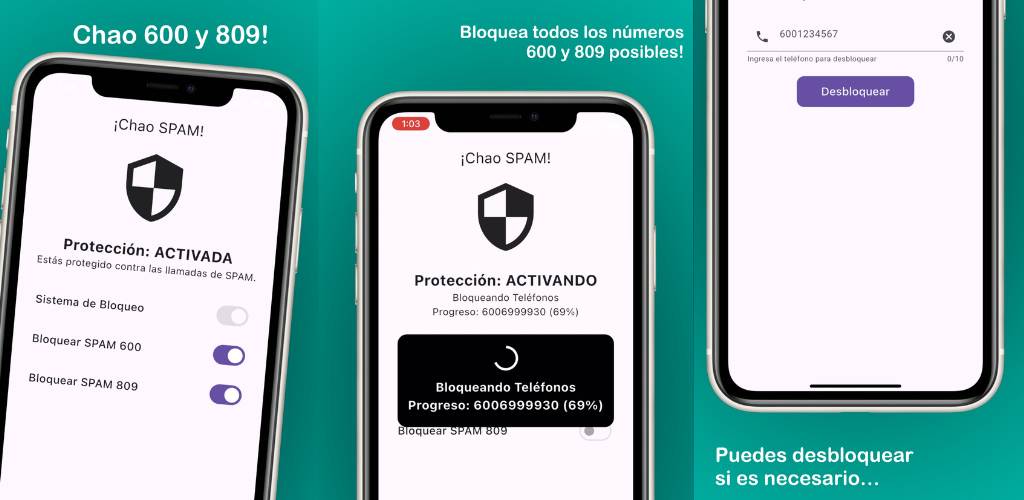
The real solution is automatic call filtering tools. Instead of managing lists manually, ChaoSPAM acts as your phone’s first line of defense in Chile.
Here’s how ChaoSPAM answers the question of how to block spam calls:
- Automated prefix blocking: Systematically ignores thousands of variations starting with 600 and 809 before your phone makes a sound.
- Fully private: It integrates at the system level. Apple and Android rely on ChaoSPAM’s offline database, but the app never reads your calls, history, or contacts. Everything stays on your device.
Quick setup — free in under two minutes
On iPhone (iOS):
- Download ChaoSPAM from the App Store.
- Open Settings, go to Phone, then to Call Blocking & Identification.
- Enable ChaoSPAM permissions.
- Open the app and turn on the filters you want.
On Android:
- Download it for free from Google Play.
- Open the app and accept the call interception permissions.
- Enable the protection switches (e.g., the toggle for 600 prefix blocking).
Manual blocking vs. ChaoSPAM: comparison
| Feature | Manual blocking | ChaoSPAM |
|---|---|---|
| Does the phone ring? | Yes, on the first call | No, blocked before it rings |
| Requires action from you | Yes, number by number | No, automatic |
| Covers variations of the same prefix | No | Yes |
| Cost | Free | Free |
| Effectiveness against telemarketing | Low | High |
Frequently asked questions
Does ChaoSPAM also block SMS spam? ChaoSPAM is currently focused on blocking incoming calls with 600 and 809 prefixes. SMS spam filtering is being evaluated for future versions.
Does it work without an internet connection? Yes. Blocking lists are downloaded to your device when you install the app. Once installed, it works completely offline.
Will I miss important calls? No. ChaoSPAM only filters specific telemarketing prefixes (600, 809). Calls from known contacts, mobile numbers, or businesses that don’t use those prefixes are not affected.
Is it compatible with eSIM and dual SIM? Yes. On both iPhone and Android, ChaoSPAM works with dual SIM setups. You can manage filters independently from within the app.
Give peace and quiet a chance. Download your new anti-spam tool now:
You might also like
How to Block a Number on Movistar Chile: Step-by-Step Guide
Learn how to block a number on Movistar Chile from iPhone and Android. Device methods and ChaoSPAM for automatic spam blocking.
April 23, 2026
How to Block a Number on WOM Chile: Complete Guide
Learn how to block a number on WOM Chile from iPhone and Android. Device options and ChaoSPAM for automatic spam blocking.
April 23, 2026
How to Block a Number on Entel: Complete Guide for Chile
Learn how to block a number on Entel from your iPhone or Android. Device settings and ChaoSPAM for automatic spam blocking.
April 23, 2026